.svg)
You can find a YouTube creator’s past brand collaborations through the Brand Scan feature, which can help you gain insight into competitors’ online marketing activities over the past year. With this feature, you can filter out creators who might be working with competitors and avoid conflicts of interest. The brand scan feature displays a creator’s latest sponsorship deals over the past year and allows you to group creators and download their brand scan results.
- Scanning for sponsorship by importing a file
- Scanning for sponsorships by group
- Viewing brand scan results
Scanning for sponsorship by importing a file
Important:
- This feature currently only supports YouTube.
- To avoid failed uploads, make sure your file follows the template’s .csv file format.
-
Log in to CreatorDB.
-
Click Brand Scan.
-
Click Scan by importing creators.
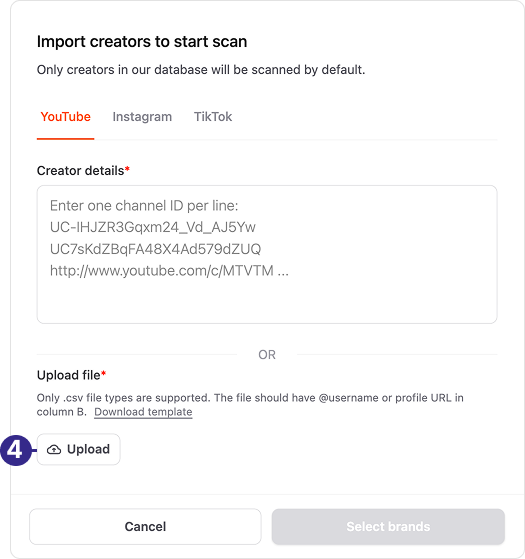
The Import creators to start scan page appears.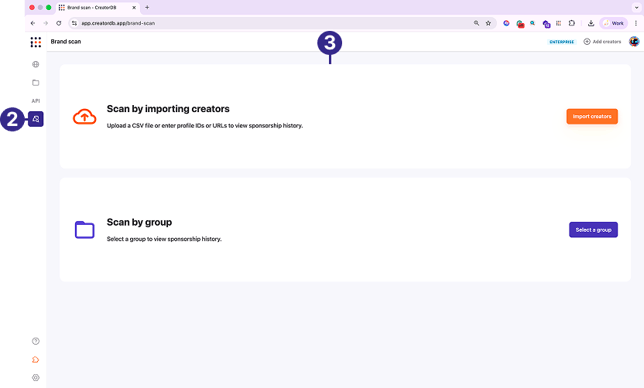
-
Click Upload.
-
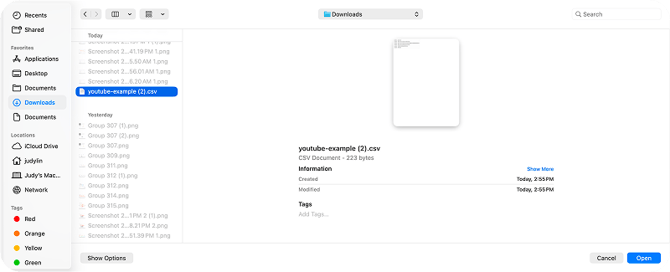
Select a .csv file to upload.
-
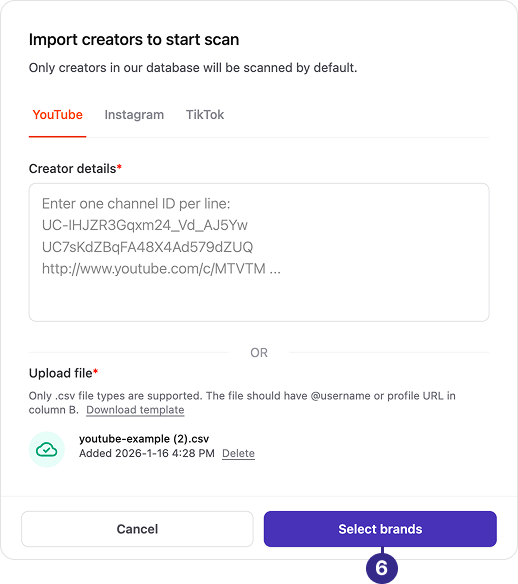
Click Select brands.
-
Enter brand names or select brands from the Suggested brands list.
-
Optional: Save brands.
-
Click Save.
The Save brands for scanning window appears.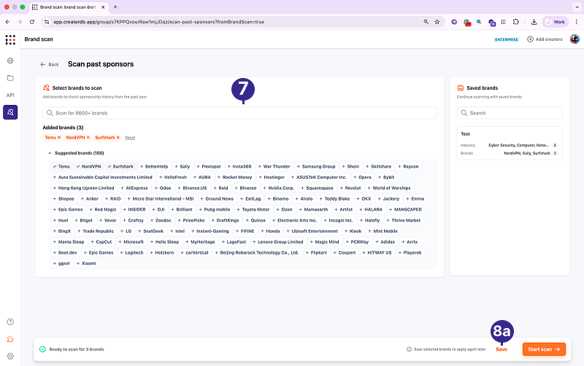
-
Enter a name.
-
Click Save.
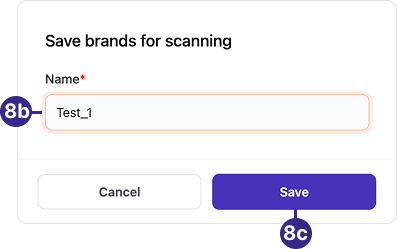
The brand appears in the Saved brands column.Tip: In the future, you can click on the saved brands button to quickly scan for sponsorships.
-
- Click Start scan→.
Note:
- Based on the number of brands and creators scanned, the brand scan process may take a few minutes.
- By default, the page will show creators with no sponsorship history. Click the Sponsorships found tab to check creators with brand deals.
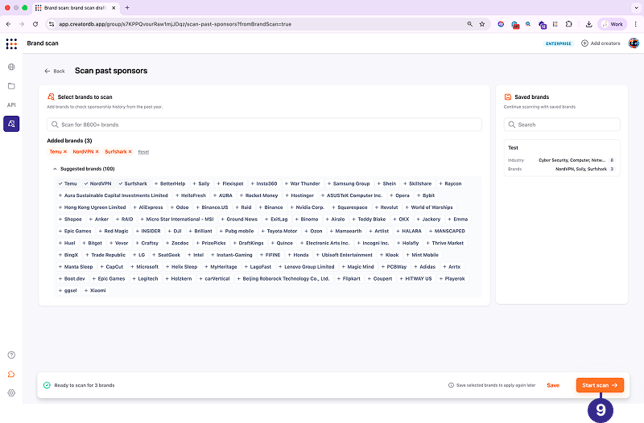
- Optional: Create a new group from scan results.
- Click on the No sponsorship history or Sponsorships found tab.
- Select a creator or click Select all.
-
Click Add to new group.
The creator is added to the list on the right.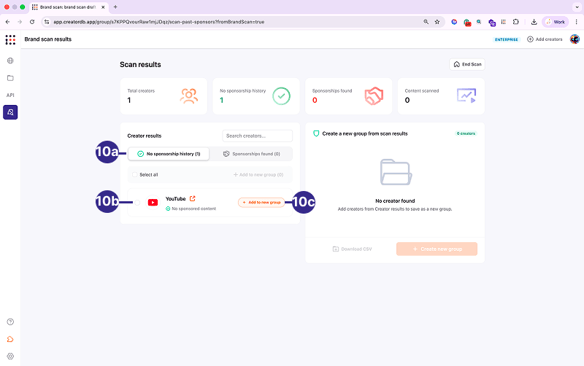
Tip: To add multiple creators, select the Select all option or select multiple creators and click +Add to new list.
- Select a creator
- Click + Create new group.
The Create new group page appears..png?width=584&height=365&name=Group_36_(1).png)
- Enter a group name.
- Optional: Enter a group description.
- Click Save.
The new group is created.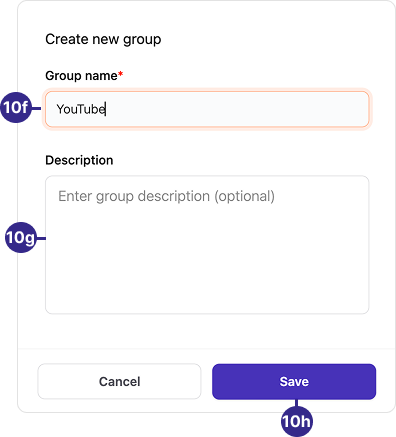
- Optional: Click Download CSV.
Downloads the groups’ data.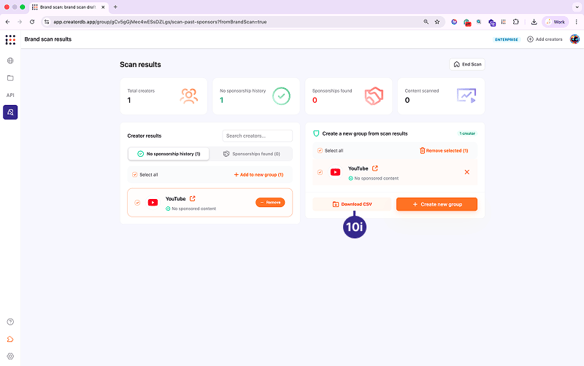
11. Click End Scan.
A confirmation message appears.
.png?width=670&height=419&name=Group_384_(1).png)
12. Click Scan ended.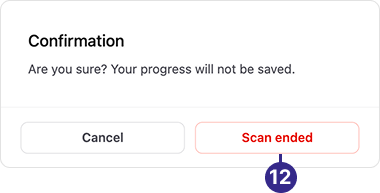
Scanning for sponsorship by group
Note: To scan for sponsorships by group, you must create a group. For details, see Creating a group.
-
Log in to CreatorDB.
-
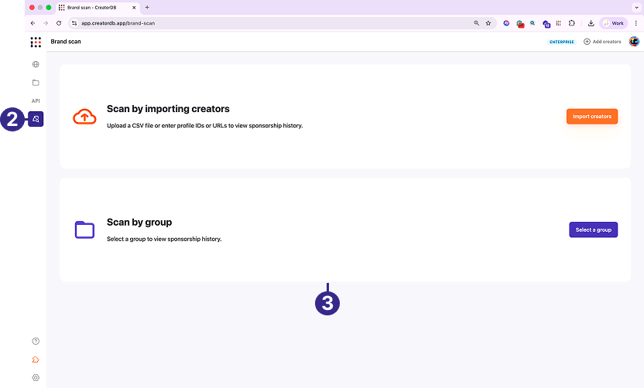
Click Brand scan.
-
Click Scan by group.
-
Select a group.
-
Click Select brands.
The Select brands to scan panel appears.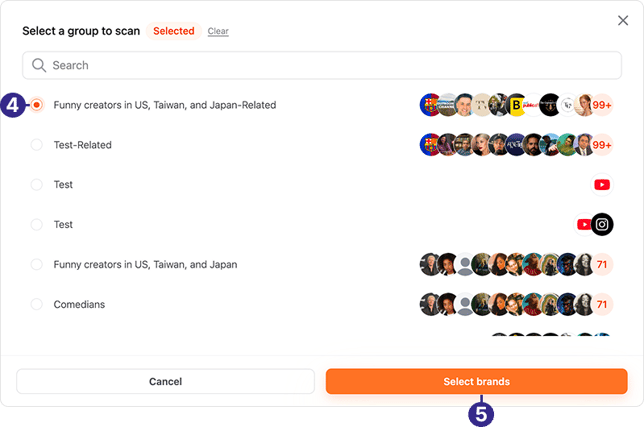
-
Enter the brand name or select brands from the recommended list.
-
Optional: Save brands.
-
Click Save.
The Save brands for scanning window appears.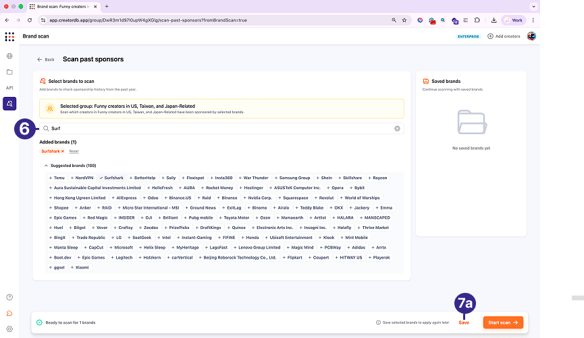
-
Enter a name.
-
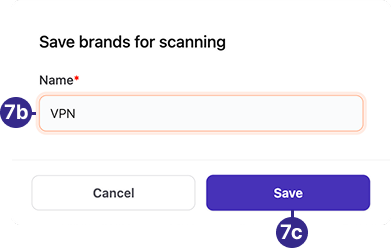
Click Save.
The brand appears in the Saved brands column.Tip: In the future, you can click on saved brands button to quickly scan for sponsorships.
-
-
Click Start scan.
The brand scan results are displayed.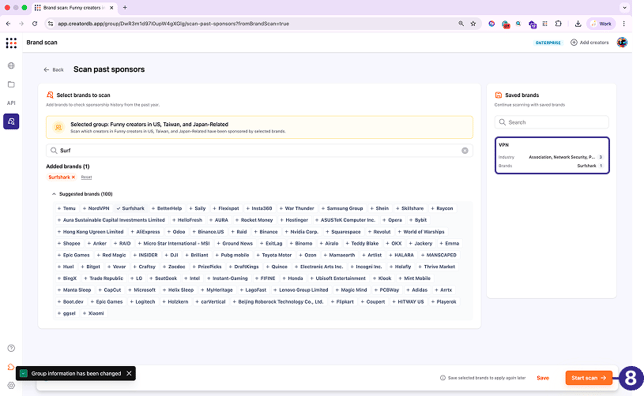
-
Optional: Create a new group from the scan results.
-
Click on the No sponsorship history or Sponsorships found tab.
-
Select creators or click Select all.
-
Click +Add to new group.
The creator is added to the list on the right.Tip: To add multiple creators, select the Select all option or select multiple creators and click +Add to new list.
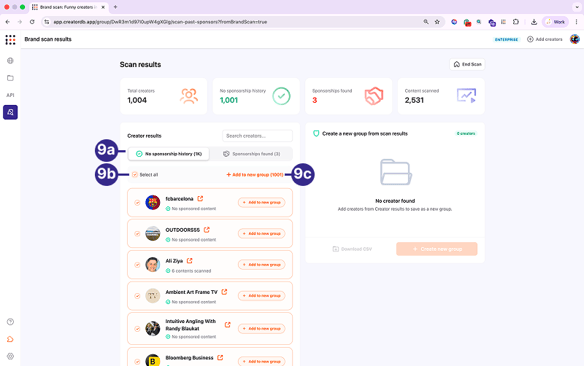
-
-
-
Select the creator or Select all.
-
Click + Create new group.
The Create new group page appears.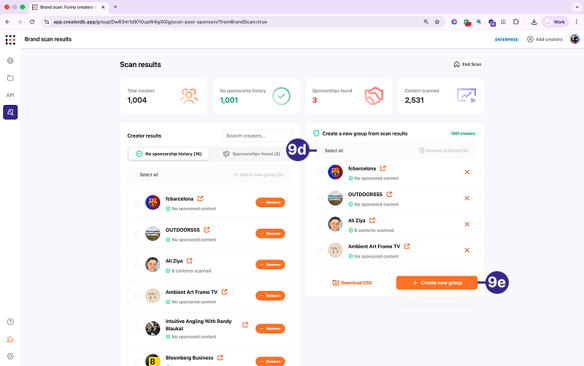
-
Enter a group name.
-
Optional: Enter a group description.
-
Click Save.
The new group is created.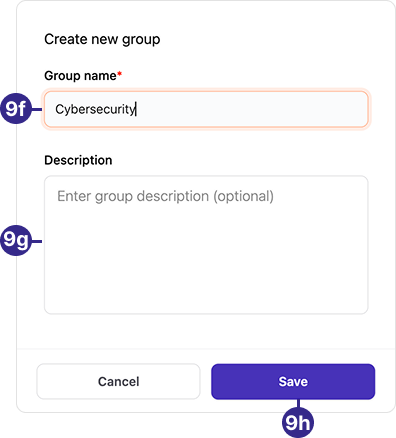
-
Optional: Click Download CSV.
Downloads the groups’ data.Note: It may take a few minutes to download the creator data.
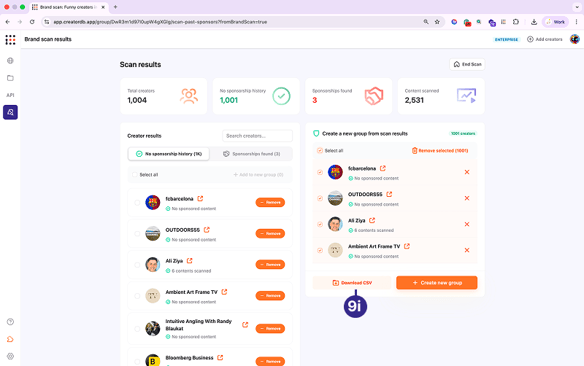
-
-
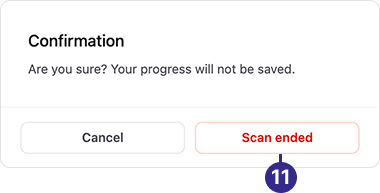
Click End Scan.
A confirmation message appears.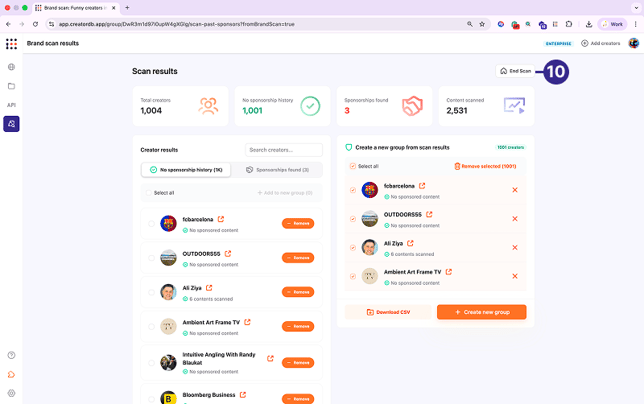
-
Click Scan ended.
Viewing brand scan results
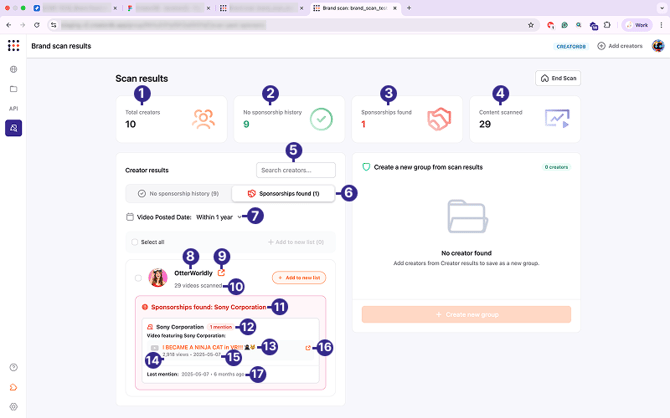
| No. | Label | Description |
| 1 | Total creators | The number of creators scanned for brand sponsorship deals over one year. |
| 2 | No sponsorship history | The number of creators scanned that do not have any sponsorship deals with the selected brands over the past year. |
| 3 | Sponsorships found | The number of creators scanned that have sponsored deals with the specified brands. |
| 4 | Content scanned | The number of videos scanned by the system. |
| 5 | Search creators… | Search bar for finding specific creators. |
| 6 | Sponsorships found | Tab that allows you to switch view from creators with no sponsorship history to those with sponsorships. |
| 7 | Video posted date | Allows you to filter sponsored creators by their videos posted within 2 months, 6 months, or up to 1 year. |
| 8 | Creator username | The creator’s account or channel name on the specified social media platform. |
| 9 | Creator profile link | The link to the creator’s profile page on the CreatorDB app. For details, see Viewing a creator’s profile and performance. |
| 10 | Videos scanned | The total number of creator videos scanned. |
| 11 | Sponsorships found | The sponsoring brand’s name. |
| 12 | Number of mentions | The number of times the sponsoring brand is mentioned in the video. |
| 13 | Video title | The sponsored video title. |
| 14 | Views | The number of views the sponsored video received. |
| 15 | Video publish date | The date that the sponsored video was published on the social media platform. |
| 16 | Video link | The link to the video on the social media platform. |
| 17 | Last mention | The last time the sponsoring brand was mentioned by the creator in a sponsored video. |