.svg)
Creator Analytics by CreatorDB allows you to view the following creator’s Instagram performance metrics:
- Viewing a creator’s Instagram posts’ statistics
- Viewing a creator’s Instagram reels’ statistics
- Viewing a creator’s Instagram content statistics
- Instagram content
- Instagram brand
Viewing a creator’s Instagram posts’ statistics
Important:
- Creator Analytics by CreatorDB currently only supports YouTube, Instagram, and TikTok.
- Creator Analytics by CreatorDB currently does not support Views Range statistics for Instagram posts.
-
Open Chrome.
-
Go to a supported social media platform.
-
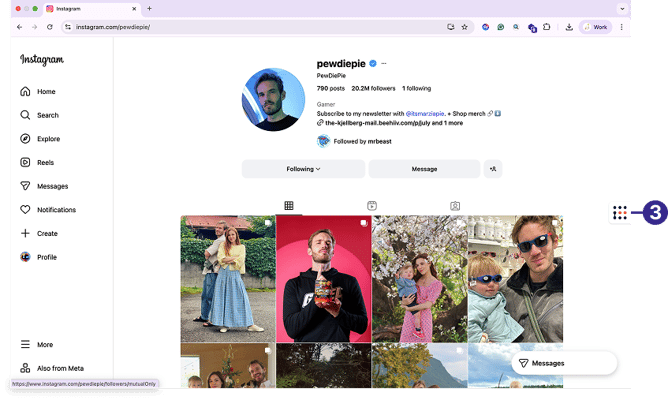
Click the CreatorDB icon.
-
Log in to your CreatorDB account.
-
Go to a creator’s account or channel.
Note: It may take a few seconds for Creator Analytics by CreatorDB to load a creator’s data.
Tip: If Creator Analytics by CreatorDB fails to update data when you switch to another creator’s account, try closing the extension and opening it again.
-
Click Instagram.
-
Click Overview. By default, it shows Instagram posts’ statistics.
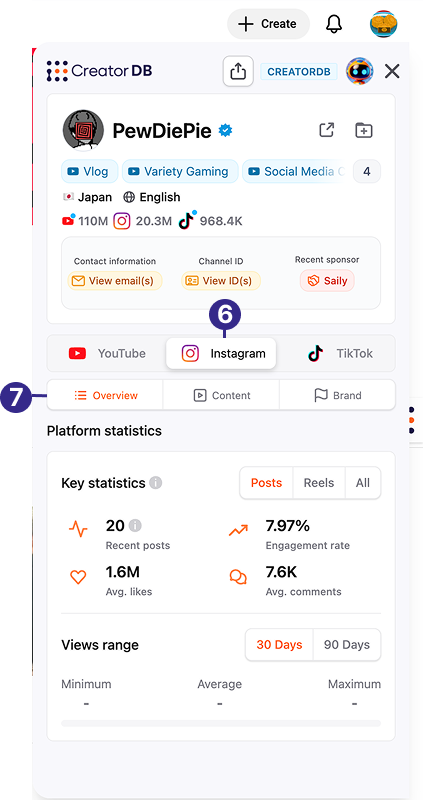
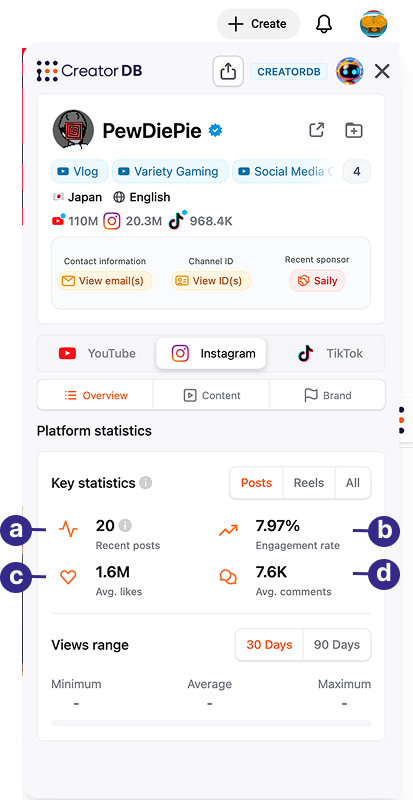
Callout Label Description a Recent posts The latest Instagram posts published by this creator over 30 days. b Engagement rate The Instagram engagement rate is calculated as:
(Likes + Comments)/ Followersc Avg. likes The average number of likes that this creator’s recent Instagram posts received. d Avg. comments The average number of comments the creator’s recent Instagram posts received. Note: Units in the sample screenshot are represented in thousands (1K =1,000) or millions (1M= 1,000,000).
Viewing a creator’s Instagram reels’ statistics
Important: Creator Analytics by CreatorDB currently only supports YouTube, Instagram, and TikTok.
-
Open Chrome.
-
Go to a supported social media platform.
-
Click the CreatorDB icon.
-
Log in to your CreatorDB account.
-
Go to a creator’s account or channel.
Note: It may take a few seconds for Creator Analytics by CreatorDB to load a creator’s data.
Tip: If Creator Analytics by CreatorDB fails to update data when you switch to another creator’s account, try closing the extension and opening it again.
-
Click Instagram.
-
Click Overview.
-
Click Reels.
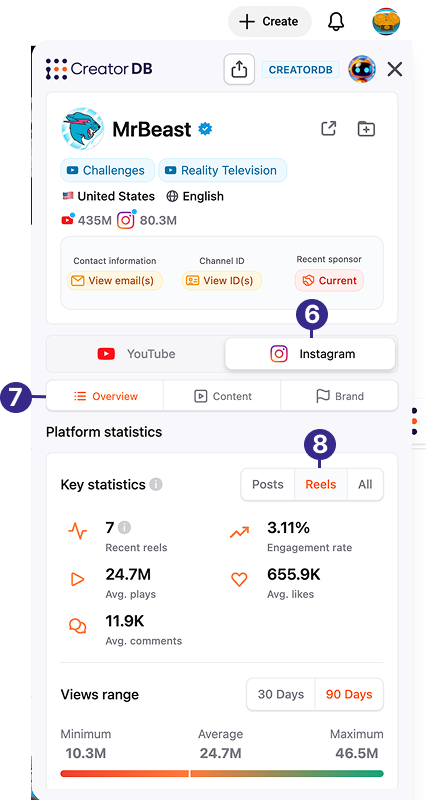
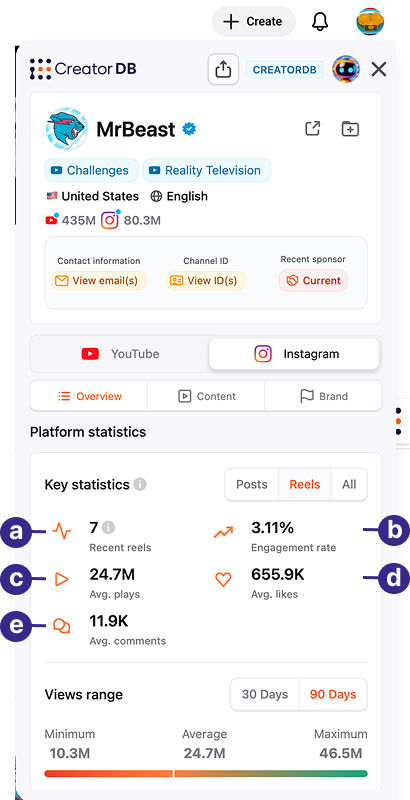
| Callout | Label | Description |
|---|---|---|
| a | Recent reels | The amount of latest Instagram reels published by this creator. |
| b | Engagement rate | The Instagram engagement rate is calculated as: (Likes + Comments)/ Followers |
| c | Avg. plays | The average nummber of plays this creator’s recent Instagram reels receieved. |
| d | Avg. likes | The average number of likes that this creator’s recent Instagram reels receive. |
| e | Avg. comments | The average number of likes or comments the creator’s recent Instagram reels received. |
Note: Units in the sample screenshot are represented in thousands (1K =1,000) or millions (1M= 1,000,000).
Views range
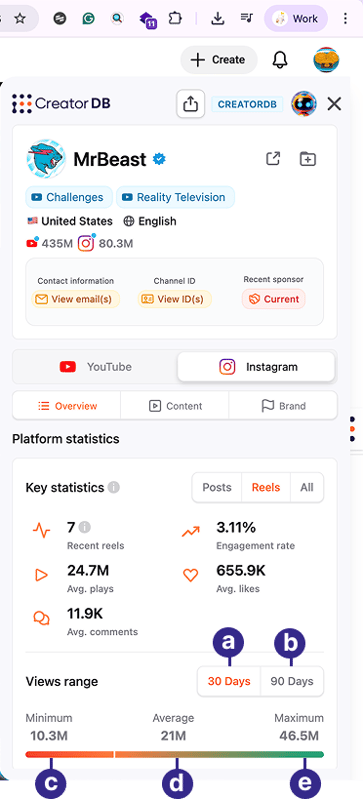
| Callout | Label | Description |
|---|---|---|
| a | 30 Days | The distribution of views for this creator’s Instagram reels over the last 30 days. |
| b | 90 Days | The distribution of views for this creator’s Instagram reels over the last 90 days. |
| c | Minimum | The minimum number of plays this creator’s Instagram reels received over a specified period. |
| d | Average | The average number of plays the creator’s Instagram reels received over a specified period. |
| e | Maximum | The maximum number of views this creator’s Instagram reels received over a specified period. |
Note:
- This feature is limited to five creator profiles in the Free plan. To upgrade from the Free plan, please visit CreatorDB’s Pricing page.
- Units in the sample screenshot are represented in thousands (1K =1,000) or by the millions (1M= 1,000,000).
Viewing a creator’s Instagram content statistics
Important: Creator Analytics by CreatorDB currently only supports YouTube, Instagram, and TikTok.
-
Open Chrome.
-
Go to a supported social media platform.
-
Click the CreatorDB icon.
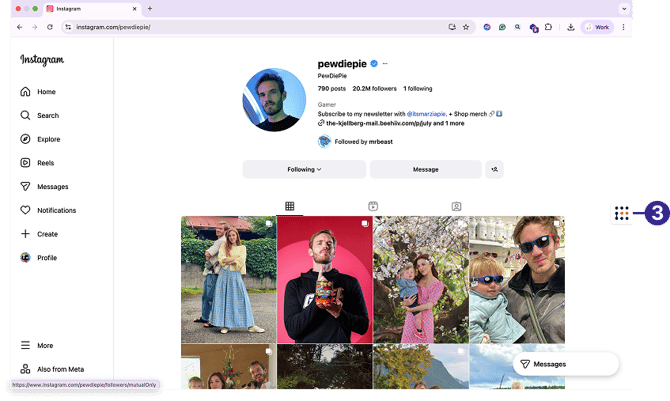
-
Log in to your CreatorDB account.
-
Go to a creator’s account or channel.
Note: It may take a few seconds for Creator Analytics by CreatorDB to load a creator’s data.
Tip: If Creator Analytics by CreatorDB fails to update data when you switch to another creator’s account, try closing the extension and opening it again.
-
Click Instagram.
-
Click Overview.
-
Click All.
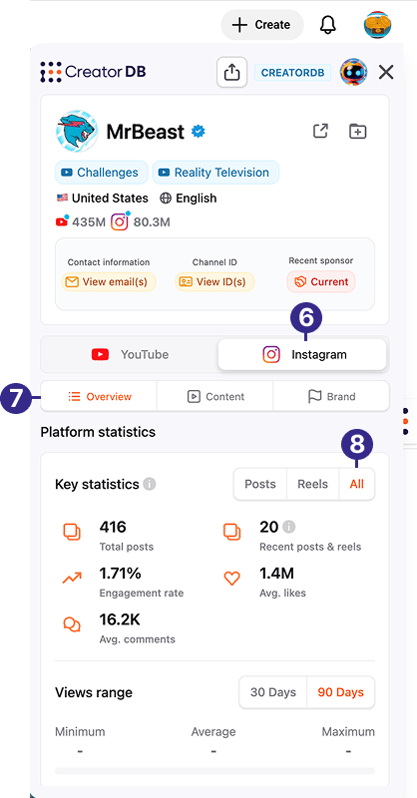
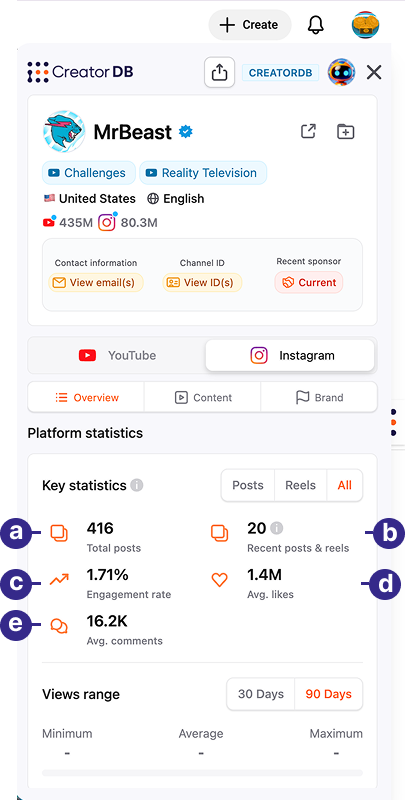
Callout Label Description a Total posts The total number of Instagram posts this creator has published over one year. b Recent posts & reels The total number of Instagram posts and reels that this creator has published in the last 30 days. c Engagement rate The average engagement rate of this creator’s Instagram posts and reels. The Instagram engagement rate is calculated as: (Likes + Comments)/ Followers d Avg. likes The average number of likes that this creator’s Instagram posts and reels received over one year. e Avg. comments The average number of comments the creator’s Instagram posts and reels received over one year. Note: Units in the sample screenshot are represented in thousands (1K =1,000) or millions (1M= 1,000,000).
Instagram content
Important: Creator Analytics by CreatorDB currently only supports YouTube, Instagram, and TikTok.
You can view a creator’s recent Instagram posts or reels performance. You can view the key statistics of the creator’s most recent published Instagram content over the last 30 days.
-
Open Chrome.
-
Go to a supported social media platform.
-
Click the CreatorDB icon.
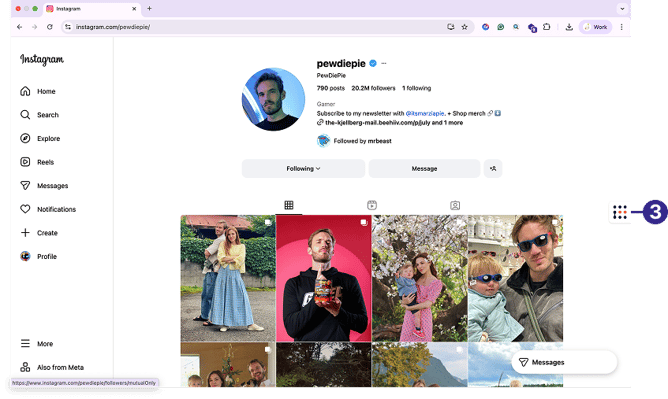
-
Log in to your CreatorDB account.
-
Go to a creator’s account or channel.
Note: It may take a few seconds for Creator Analytics by CreatorDB to load a creator’s data.
Tip: If Creator Analytics by CreatorDB fails to update data when you go to another creator’s account, try closing the extension and opening it again.
-
Click Instagram.
-
Click Content.
-
Click Posts.
You can view the following Instagram posts or reels information and statistics: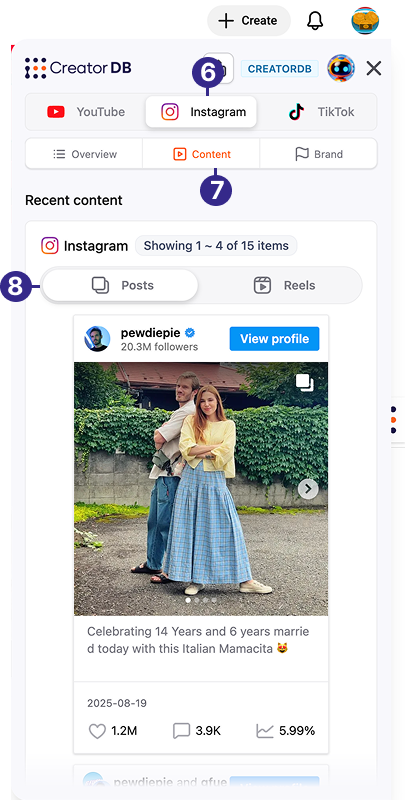
Recent content
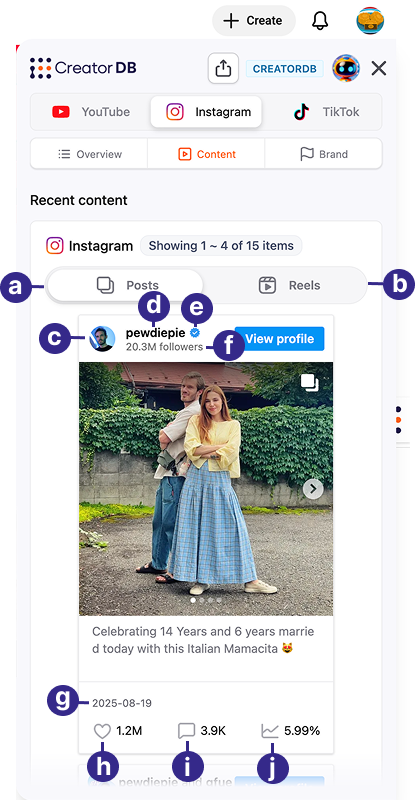
| Callout | Label | Description |
|---|---|---|
| a | Posts | The most recent Instagram posts published by the creator over the last 30 days. |
| b | Reels | The most recent Instagram reels published by the creator over the last 30 days. |
| c | Profile picture | The creator’s Instagram profile picture. |
| d | Instagram handle | The creator’s Instagram account name. |
| e | Verification badge | Instagram verified creators will have a blue verification badge. |
| f | Followers | The total number of followers this Instagram creator has. |
| g | Date | The date the creator published this Instagram content. |
| h | Likes | The number of likes the recent Instagram content published by the creator received. |
| i | Comments | The number of comments the recent Instagram content published by the creator received. |
| j | Engagement rate | The engagement rate of the recent Instagram content published by the creator. The Instagram engagement rate is calculated as: $(Likes + Comments)/ Followers$ |
Note: Units in the sample screenshot are represented in thousands (1K =1,000) or millions (1M= 1,000,000).
Content data metrics
CreatorDB provides content information, including hashtags, topics, and niches, which can help you gain a better understanding of the creator’s content type. Additional metrics show the creator's posting frequency, which can serve as a productivity indicator.
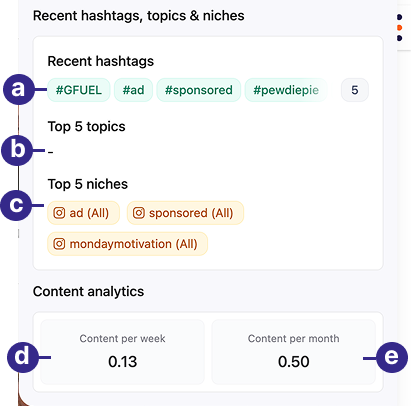
| Callout | Label | Description |
|---|---|---|
| a | Recent hashtags | Hashtags used by the creator in recently published Instagram content over the last 30 days. Displays up to 64 hashtags. |
| b | Top 5 topics | The top 5 topics chosen by the creator for recently published Instagram content over the last 30 days. |
| c | Top 5 niches | The top 5 niches chosen by the creator for recently published Instagram content over the last 30 days. |
| d | Content per week | The average number of Instagram content, the creator publishes weekly. Instagram content here includes all recent posts and reels. |
| e | Content per month | The average number of Instagram content, the creator published monthly. Instagram content here includes all recent posts and reels. |
Instagram brand
Important: Creator Analytics by CreatorDB currently only supports YouTube, Instagram, and TikTok.
Note: This feature is unavailable in the Free plan. To upgrade from the Free plan, please visit CreatorDB’s Pricing page.
You can view a creator’s recent sponsored Instagram posts or reels performance over the last year. The creator’s average Instagram content performance can be used as a benchmark to measure the performance of sponsored content. Additionally, you can view the industries that have been sponsoring this creator.
Viewing a creator’s recent Instagram sponsors
-
Open Chrome.
-
Go to a supported social media platform.
-
Click the CreatorDB icon.
-
Log in to your CreatorDB account.
-
Go to a creator’s account or channel.
Note: It may take a few seconds for Creator Analytics by CreatorDB to load a creator’s data.
Tip: If Creator Analytics by CreatorDB fails to update the data when you switch to another creator’s account, try closing the extension and opening it again.
-
Click Instagram.
-
Click Brand. You can perform the following tasks:
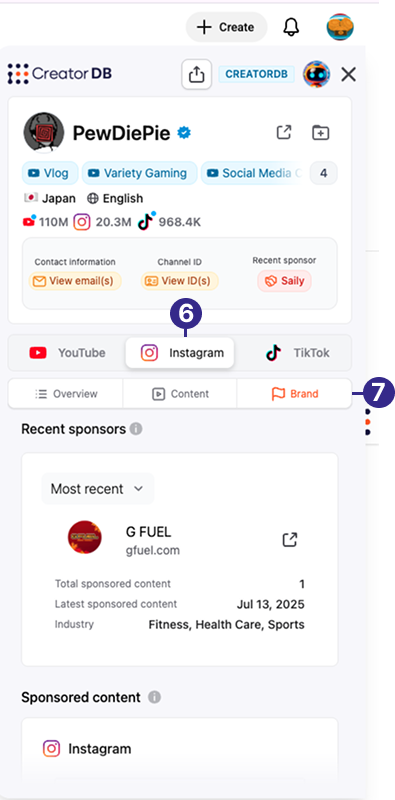
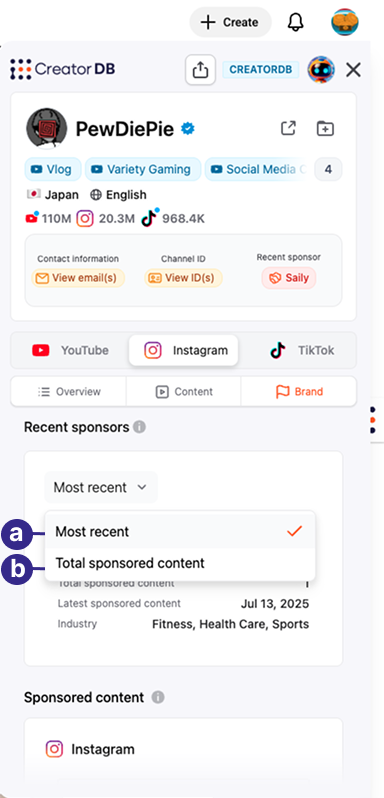
| Callout | Task | Actions |
|---|---|---|
| a | Sort brands by most recent. | a. Select Most recent. Sorts brands by sponsored content publish date. b. Scroll down to Sponsored content to view the creator’s sponsored Instagram content sponsored by this brand. |
| b | Sort brands by total sponsored content. | Select Total sponsored content. Sorts brands by the total number of Instagram content they’ve sponsored in descending order. |
Tip: Click Clear filter to remove brand or sponsored content sorting conditions.
You can view the following information:
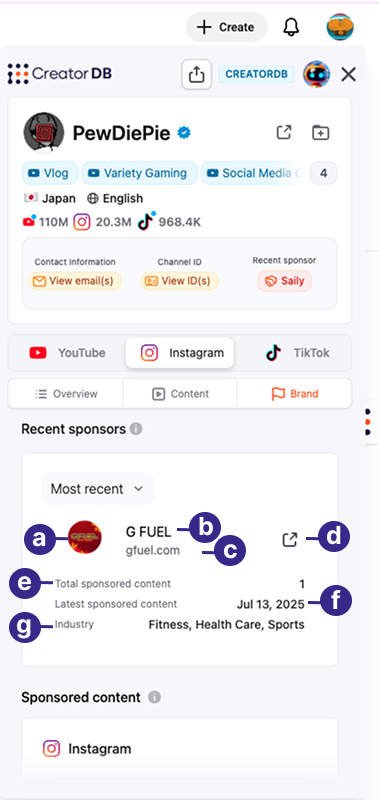
| Callout | Label | Description |
|---|---|---|
| a | Brand logo | The brand’s logo. |
| b | Brand name | The brand name. |
| c | Official site | The brand’s website. |
| d | CreatorDB link | The link to the brand’s page on the CreatorDB web platform. |
| e | Total sponsored content | The total number of content sponsored by this brand. |
| f | Last sponsored content | The date the creator last published Instagram content sponsored by this brand. |
| g | Industry | The industries associated with the brand. |
Note: Units in the sample screenshot are represented in thousands (1K =1,000) or millions (1M= 1,000,000).
- Sponsored content
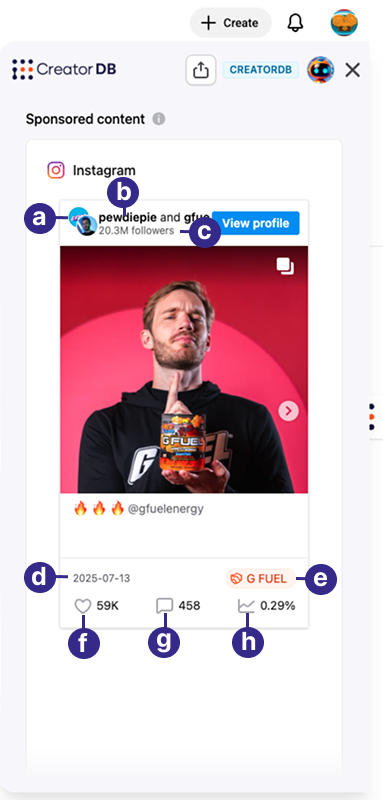
| Callout | Label | Description |
|---|---|---|
| a | Profile picture | The creator’s Instagram profile picture. |
| b | Instagram handle | The creator’s Instagram account name. |
| c | Followers or audio source | Sponsored Instagram posts will show the creator’s number of followers, while sponsored reels show the audio source. |
| d | Publish date | The date that the Instagram content was published. |
| e | Sponsoring brand | Shows the sponsoring brand name. |
| f | Likes | The number of likes the sponsored Instagram content received. |
| g | Comments | The number of comments the sponsored Instagram content received. |
| h | Engagement rate | The engagement rate of the Instagram content. Instagram engagement rate is calculated as follows: (Likes + Comments)/ Followers |
Note: Units in the sample screenshot are represented in thousands (1K =1,000) or millions (1M= 1,000,000).