.svg)
Creator Analytics by CreatorDB allows you to view the following creator’s YouTube performance metrics:
YouTube overview
Important: Creator Analytics by CreatorDB currently only supports YouTube, Instagram, and TikTok.
-
Open Chrome.
-
Go to a supported social media platform.
-
Click the CreatorDB icon.
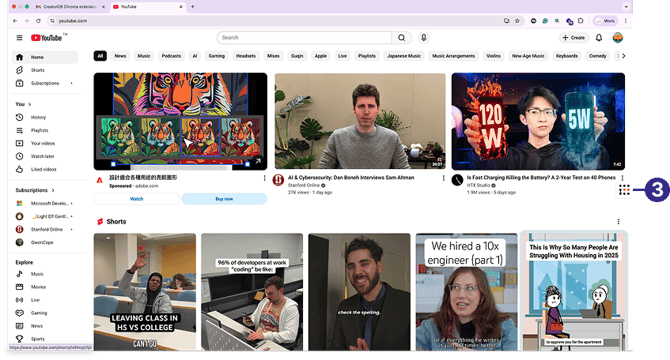
-
Log in to your CreatorDB account.
-
Go to a creator’s account or channel.
Note: It may take a few seconds for Creator Analytics by CreatorDB to load a creator’s data.
Tip: If Creator Analytics by CreatorDB fails to update data when you switch to another creator’s account, try closing the extension and opening it again.
By default, Creator Analytics by CreatorDB loads the basic YouTube statistics.
-
Click Overview.
You can view the following platform statistics:Key statistics
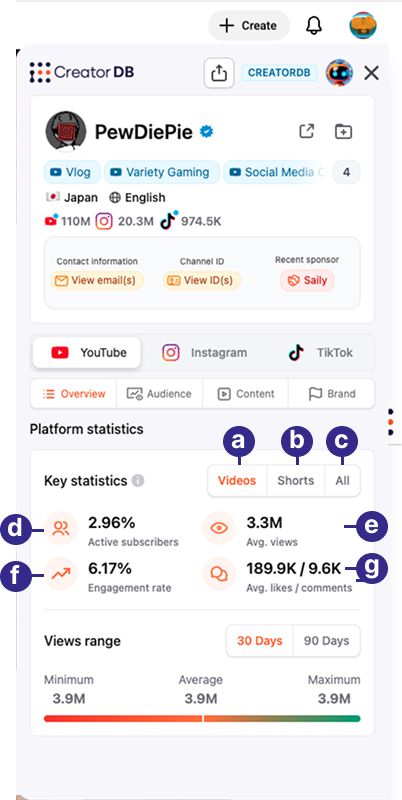
Callout Label Description a Videos The key statistics for YouTube videos published by this creator. b Shorts The key statistics for YouTube shorts published by this creator. c All The key statistics for YouTube shorts and videos published by this creator. d Active subscribers The percentage of subscribers that are actively engaged on this creator's YouTube channel. This is calculated as follows: Average videos views/ subscribers e Avg. views The average number of views that videos receive on this YouTube channel. f Engagement rate The YouTube engagement rate is calculated as: (Likes + Comments)/ views g Avg. likes/comments The average number of likes or comments the creator’s YouTube shorts or videos received over one year. Note: Units in the sample screenshot are represented in thousands (1K =1,000) or millions (1M= 1,000,000).
Views range
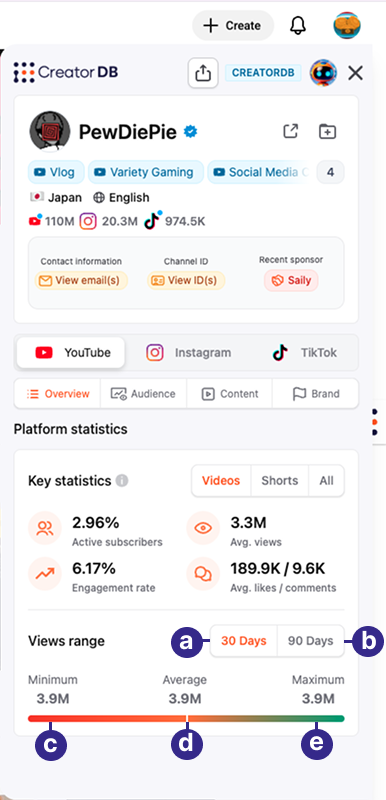
Callout Label Description a 30 Days The distribution of views for this creator’s YouTube shorts or videos over the last 30 days. b 90 Days The distribution of views for this creator’s YouTube shorts or videos over the last 90 days. c Minimum The minimum number of views the creator’s YouTube videos received over a specified period. d Average The average number of views the creator’s YouTube videos received over a specified period. e Maximum The maximum number of views the creator’s YouTube videos received over a specified period.
Note:
- This feature is limited to five creator profiles in the Free plan. To upgrade from the Free plan, please visit CreatorDB’s Pricing page.
- Units in the sample screenshot are represented in thousands (1K =1,000) or by the millions (1M= 1,000,000)
YouTube audience
Important: Creator Analytics by CreatorDB currently only supports YouTube, Instagram, and TikTok.
-
Open Chrome.
-
Go to a supported social media platform.
-
Click the CreatorDB icon.
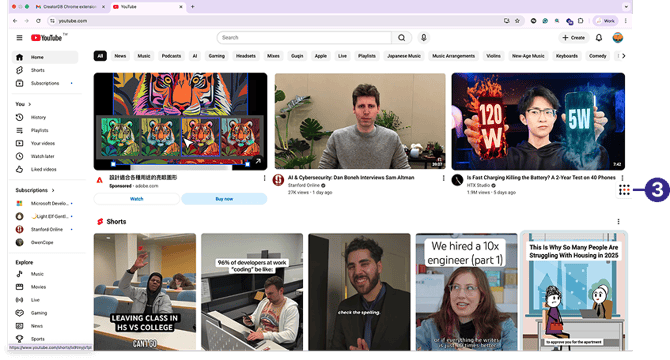
-
Log in to your CreatorDB account.
-
Go to a creator’s account or channel.
Note: It may take a few seconds for Creator Analytics by CreatorDB to load a creator’s data.
Tip: If Creator Analytics by CreatorDB fails to update data when you switch to another creator’s account, try closing the extension and opening it again.
By default, Creator Analytics by CreatorDB loads the basic YouTube statistics.
-
Click Audience. You can view the following audience statistics:
Demographic overview
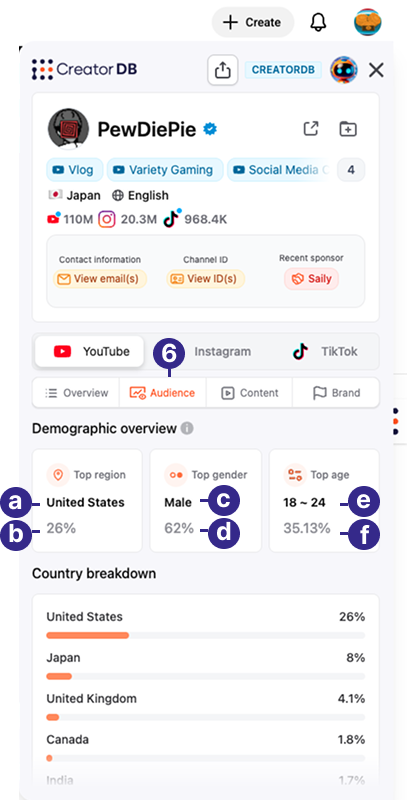
Callout Label Description a Top region The country where most of the creator’s YouTube audience is from. b Top region percentage The percentage of the creator’s YouTube audience that is from the top country. c Top gender The gender that comprises the creator’s top YouTube content viewers. d Top gender percentage The percentage of top gender viewers. e Top age The creator’s main YouTube audience age range. f Top age percentage The percentage of the creator’s main YouTube audience age range. Country breakdown
.png?width=334&height=308&name=Screenshot%202025-11-13%20at%202.12.16%20PM%201%20(1).png)
Shows the top five countries with the largest audience for this YouTube channel and the percentage of viewers from these countries.
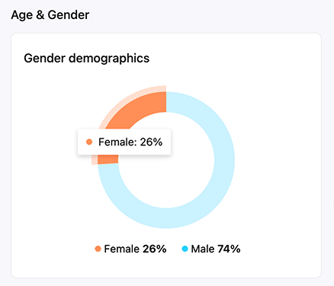
Age & Gender
- Gender demographics
- Age breakdown
The breakdown and percentage of each audience age group of the creator’s YouTube channel.
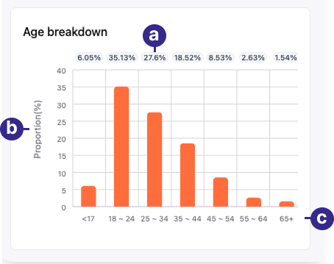
| Callout | Label | Description |
|---|---|---|
| a | Percentage | The actual percentage of the creator’s YouTube audience that are in a specific age bracket. |
| b | Proportion (%) | The proportion of the creator’s YouTube audience that belong to a specific age bracket. |
| c | Age ranges | The creator’s YouTube audience age brackets. |
YouTube content
Important: Creator Analytics by CreatorDB currently only supports YouTube, Instagram, and TikTok.
You can view a creator’s recent YouTube videos or shorts performance. You can view the key statistics of the creator’s most recent YouTube posts over the last 30 days.
-
Open Chrome.
-
Go to a supported social media platform.
-
Click the CreatorDB icon.
-
Log in to your CreatorDB account.
-
Go to a creator’s account or channel.
Note: It may take a few seconds for Creator Analytics by CreatorDB to load a creator’s data.
Tip: If Creator Analytics by CreatorDB fails to update data when you switch to another creator’s account, try closing the extension and opening it again.
By default, Creator Analytics by CreatorDB loads the basic YouTube statistics.
-
Click Content.
You can view the following information and statistics:.png?width=670&height=574&name=Group%2079%20(1).png)
Recent content
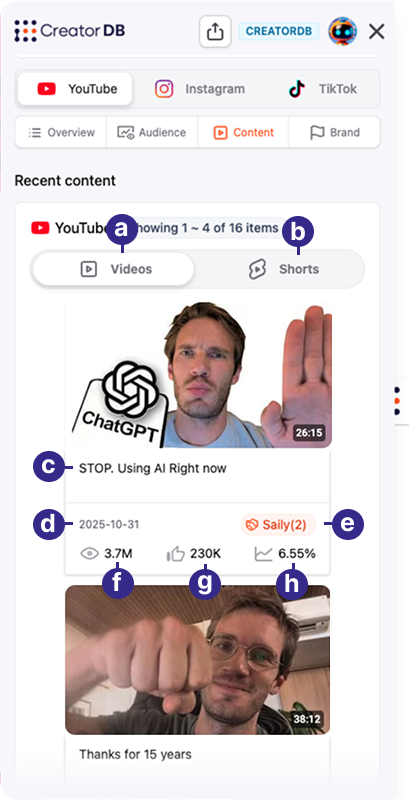
| Callout | Label | Description |
|---|---|---|
| a | Videos | The most recent YouTube videos published by the creator over the last 30 days. |
| b | Shorts | The most recent YouTube shorts published by the creator over the last 30 days. |
| c | Title | The title of the recent YouTube content published by the creator. |
| d | Date | The date that the recent YouTube content was published by the creator. |
| e | Sponsor | The brand that sponsored this video. |
| f | Views | The number of views the recent YouTube content published by the creator received. |
| g | Likes | The number of likes the recent YouTube content published by the creator received. |
| h | Engagement rate | The engagement rate of the recent YouTube content published by the creator. The YouTube engagement rate is calculated as: (Likes + Comments)/ views |
Note: Units in the sample screenshot are represented in thousands (1K =1,000) or millions (1M= 1,000,000).
Content metrics
CreatorDB provides content information, including hashtags, topics, and niches, which can help you gain a better understanding of the creator’s content type. Additional metrics show the creator's posting frequency, which can serve as a productivity indicator.
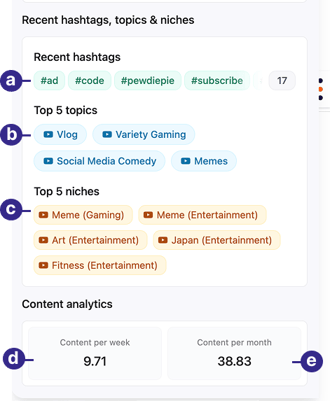
| Callout | Label | Description |
|---|---|---|
| a | Recent hashtags | Hashtags used by the creator in recently published YouTube content over the last 30 days. Displays up to 64 hashtags. |
| b | Top 5 topics | The top 5 topics chosen by the creator for recently published YouTube content over the last 30 days. |
| c | Top 5 niches | The top 5 niches assigned by CreatorDB’s AI model to the creator’s recently published Youtube content over the last 30 days. |
| d | Content per week | The average number of YouTube content, the creator publishes weekly. The YouTube content here includes all recent YouTube shorts and videos. |
| e | Content per month | The average number of YouTube content, the creator publishes monthly. The YouTube content here includes all recent YouTube shorts and videos. |
YouTube brand
Important: Creator Analytics by CreatorDB currently only supports YouTube, Instagram, and TikTok.
Note: This feature is unavailable in the Free plan. To upgrade from the Free plan, please visit CreatorDB’s Pricing page.
You can view a creator’s recent sponsored YouTube videos or shorts performance over the last year. You can use the creator’s average YouTube content performance as a benchmark to measure the performance of sponsored content. Additionally, you can view the industries that have been sponsoring this creator.
-
Open Chrome.
-
Go to a supported social media platform.
-
Click the CreatorDB icon.
-
Log in to your CreatorDB account.
-
Go to a creator’s account or channel.
Note: It may take a few seconds for Creator Analytics by CreatorDB to load a creator’s data.
Tip: If Creator Analytics by CreatorDB fails to update the data when you switch to another creator’s account, try closing the extension and opening it again.
By default, Creator Analytics by CreatorDB loads the basic YouTube statistics.
-
Note: Units in the sample screenshot are represented in thousands (1K =1,000) or millions (1M= 1,000,000).
-
Click Brand.
You can view the following information and statistics: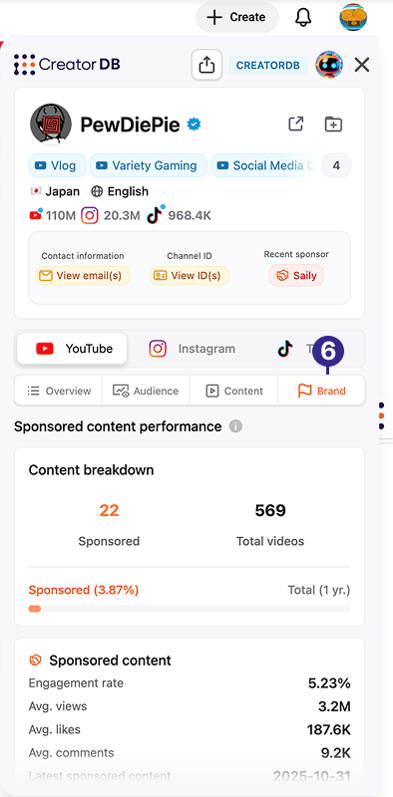
Sponsored content performance
- Content breakdown
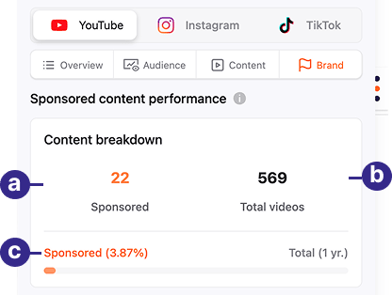
Callout Label Description a Sponsored The creator’s number of sponsored YouTube content over one year. b Total videos The total number of YouTube videos the creator published over one year. c Sponsored percentage The percentage of creator YouTube videos that was sponsored over one year. - Sponsored content
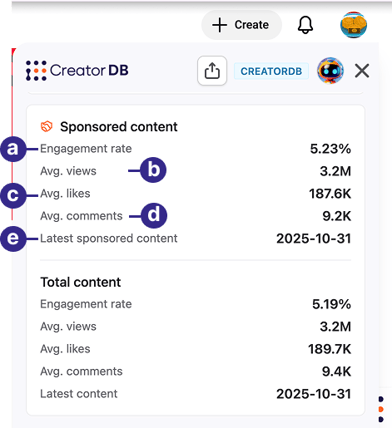
Callout Label Description a Engagement rate The average engagement rate of the creator’s sponsored YouTube content published over one year. The YouTube engagement rate is calculated as: (Likes + Comments)/ views b Avg. views The average number of views that a creator’s sponsored YouTube content published over one year has received. c Avg. likes The average number of likes that a creator’s sponsored YouTube content published over one year has received. d Avg. comments The average number of comments that a creator’s sponsored YouTube content published over one year has received. e Last sponsored content The date that the creator published the last sponsored YouTube content. Note: Units in the sample screenshot are represented in thousands (1K =1,000) or millions (1M= 1,000,000).
- Total content
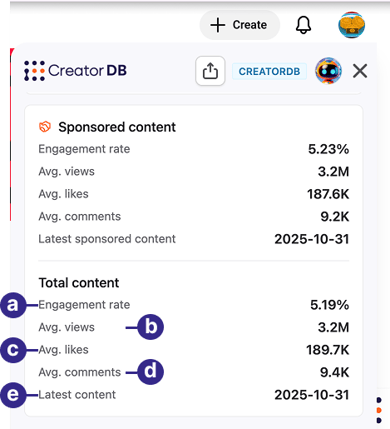
Callout Label Description a Engagement rate The average engagement rate of all the creator’s YouTube content published over one year. The YouTube engagement rate is calculated as: $(Likes + Comments)/ views$ b Avg. views The average number of views that all the creator’s YouTube content has received over one year. c Avg. likes The average number of likes that all the creator’s YouTube content has received over one year. d Avg. comments The average number of comments that all of the creator’s YouTube content has received over one year. e Latest content The date that the creator published their latest YouTube content. Note: Units in the sample screenshot are represented in thousands (1K =1,000) or millions (1M= 1,000,000).
Industries
You can view the industries of a YouTube creator’s sponsors, and sort the sponsored content by industry.
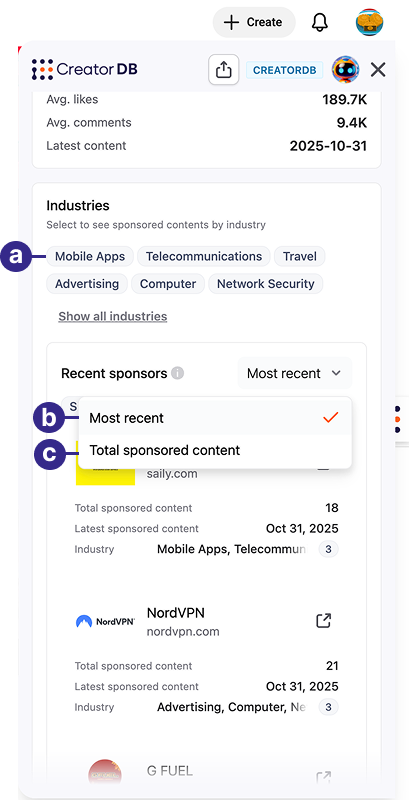
Callout Tasks Actions a Sort sponsored content by industries. i. Click on an industry.
Lists sponsoring brands in that industry.
ii. Scroll down to Sponsored content to view the creators YouTube content sponsored by this brand.b Sort brands by most recent. i. Select Most recent.
Sorts brands by the latest sponsored content publish date.ii. Scroll down to Sponsored content to view the creators latest YouTube content sponsored by this brand.
c Sort brands by total sponsored content. Select Total sponsored content.
Sorts brands by the total number of YouTube content they’ve sponsored in descending order.Tip: Click Clear filter to remove the brand sorting conditions.
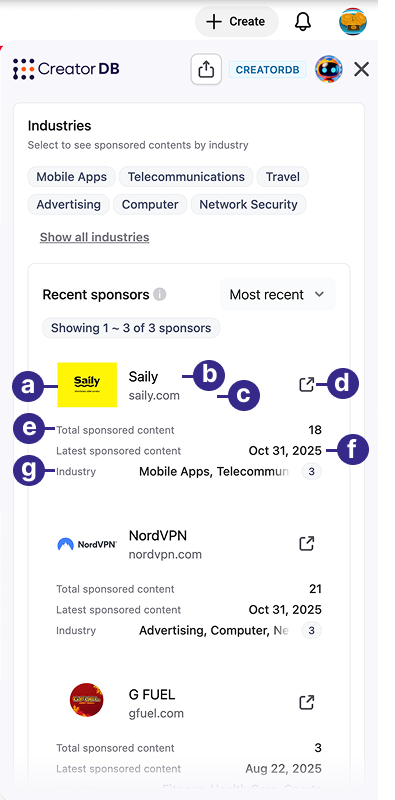
Callout Label Description a Brand logo The brand’s logo. b Brand name The brand name. c Official site The brand’s website. d CreatorDB link The link to the brand’s page on the CreatorDB web platform. e Total sponsored content The total number of content sponsored by this brand. f Latest sponsored content The date the creator’s publishedYouTube content sponsored by this brand. g Industry The industries associated with the brand. Sponsored content
After applying the filters in Industries, you can further sort sponsored content based on the content’s performance metrics, such as views, likes, and engagement rates. For details, see Industries.
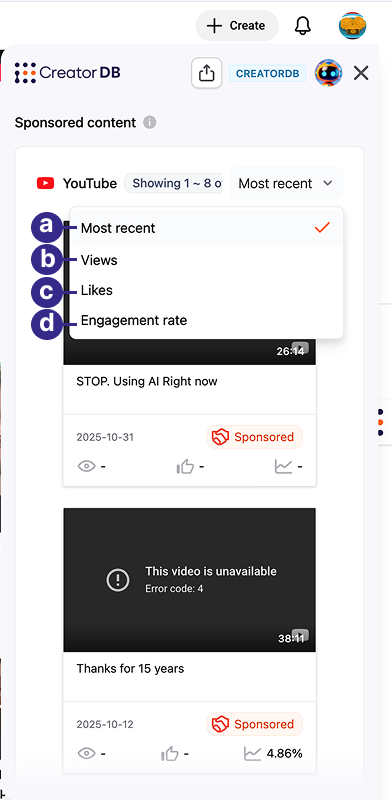
| No. | Tasks | Actions |
|---|---|---|
| a | Sort sponsored content by most recent. | Select Most recent. Lists the creator’s sponsored YouTube content by published date in descending order. |
| b | Sort sponsored content by views. | Select Views. Sorts the creator’s sponsored YouTube content by the number of views received in descending order. |
| c | Sort sponsored content by likes. | Select Likes. Sorts the creator’s sponsored YouTube content by the number of likes received in descending order. |
| d | Sort sponsored content by engagement rate. | Select Engagement rate. Sorts the creator’s sponsored YouTube content by the engagement rate received in descending order. |